



TL;DR Summary: Creating and using Snowflake streams enables efficient tracking of table changes for data management. The guide covers stream setup, table creation, and automating inventory updates.
- Streams act like triggers, capturing data changes for processing.
- Includes an inventory replenishment scenario to illustrate usage.
In this tutorial, we’ll show how to create and use streams in Snowflake.
Streams in Snowflake explained
A Snowflake stream—short for table stream—keeps track of changes to a table. You can use Snowflake streams to:
- Emulate triggers in Snowflake (unlike triggers, streams don't fire immediately)
- Gather changes in a staging table and update some other table based on those changes at some frequency
Here we create a sample scenario: an inventory replenishment system. When we receive replenishment orders, we need to increase on-hand inventory.
We run this task manually. In actual use, you would want to run it as a Snowflake task on some kind of fixed schedule.
Create the data, stream & tables
In order to follow along, create the orders and products table:
Tutorial use case
- Orders are inventory movements.
- Products holds the inventory on-hand quantity.
If you start with 25 items and make three replenishment orders of 25, 25, and 25, you would have 100 items on hand at the end. Sum those three orders and add 75 to the starting balance of 25 to get 100.
Create these two tables:
    CREATE TABLE orders
  (
     customernumber     varchar(100) PRIMARY KEY,
    ordernumber varchar(100),
    comments varchar(200),
    orderdate date,
    ordertype varchar(10),
    shipdate date,
discount number,
quantity int,
    productnumber varchar(50)
)
    create table products (
      productnumber varchar(50) primary key,
      movementdate datetime,
      quantity number,
      movementtype varchar(10));
Now, add a product to the products table and give it a starting 100 units on-hand inventory.
insert into products(productnumber, quantity) values ('EE333', 100);
Now create a stream on the orders table. Snowflake will start tracking changes to that table.
CREATE OR REPLACE STREAM orders_STREAM on table orders;
Now create an order.
insert into orders (customernumber,ordernumber,comments,orderdate,ordertype,shipdate,discount,quantity,productnumber) values ('855','533','jqplygemaq','2020-10-08','sale','2020-10-18','0.10503143596496034','65','EE333')
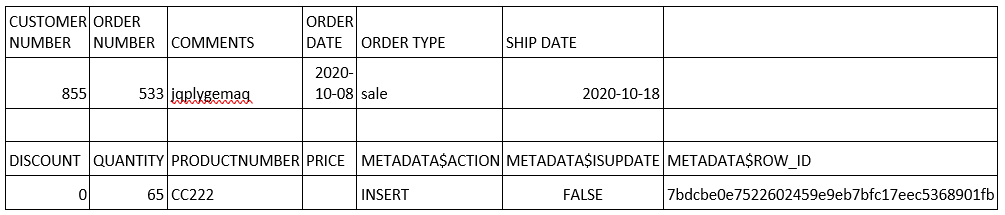
Then query the orders_stream table:
select * from orders_stream
Here are the results. You can see that we added one record.
Update on-hand inventory
We have received 65 more items into inventory, so we need to update the inventory balance. Procedure as follows.
Start a transaction using the begin statement.
begin;
Then run this update statement, which basically:
- Sums the orders for each product
- Adds the sum of orders quantities to the original inventory balance.
This update statement gets the product numbers from the orders stream table. That's the table that tells Snowflake which products need to have their inventory updated.
    update products
     set quantity = onhand
     from
      (select distinct p.productnumber,
            p.quantity as dquantity,
            o.quantity ,
            p.quantity + o.quantity as onhand
       from products p
       inner join orders o on
              p.productnumber = o.productnumber)  as z
        where z.productnumber = (select productnumber from orders_stream)
commit:
At this point the orders_stream table is emptied, which happens when you execute a read on it.
(Note: Begin and commit make a transaction, which is a logically related set of SQL statements. They lock the tables involved. Without that, you could end up with a mismatched situation, like an incorrect inventory balance because one transaction worked and the other did not.)
Now query orders_stream and you will see that the table is empty.
Additional resources
For more tutorials like this, explore these resources:
Snowflake Guide
- Snowflake 101: Intro to the Snowflake Data Cloud
- How To Import Amazon S3 Data to Snowflake
- How To Query JSON Data in Snowflake
- Loading CSV Files from S3 to Snowflake
- Snowflake: Using Analytics & Statistical Functions
- Snowflake Window Functions: Partition By and Order By
- Snowflake Lag Function and Moving Averages
- Snowflake SQL Aggregate Functions & Table Joins
- User Defined Functions (UDFs) in Snowflake
- Creating & Using Snowflake Streams
- Using Stored Procedures in Snowflake
- Snowflake vs Redshift: What’s The Difference & How To Choose?
These postings are my own and do not necessarily represent BMC's position, strategies, or opinion.